Writing tickets is probably not the most exciting part of being a developer. You already know what needs to change, but you still need to open the tracker, write the description, and select the right project and milestone. With Linear connected to my AI assistant, I can describe the work where I’m already working and review the ticket before it’s created.
I want to describe the work while I have the context in front of me, and let a skill take care of preparing the ticket. In this post I will go through create-linear-ticket, a skill for preparing and reviewing a ticket before creating it.

Why a skill for creating tickets?
The useful part is having my usual workflow written down. Each developer has their own Linear user and works with different projects and milestones. Those choices should come from their configuration, without having to repeat them in every request.
There is also the description itself. A quick note can make sense when you write it, but leave the next person wondering what actually needs to change. The skill turns that note into a draft, keeps unanswered questions visible, and gives me a chance to review it before anything is created.
A skill here is a set of instructions for an AI assistant to follow. The Linear connection provides the tools to read and create issues; the skill describes how to use those tools for this task. It needs a configured connection and the relevant access before it can create anything.
Starting with a description
This example uses the Claude Code command from my raholsn plugin, with Linear configured:
/raholsn:create-linear-ticket The CSV export does not include the filters selected on the page. It should export the same rows that the user is looking at.That gives it the observed problem and the intended behavior. It does not tell it why the export is wrong, because we have not investigated that yet.
An illustrative draft could look like this:
Apply selected filters to the CSV export
The CSV export does not include the filters selected on the page. The expected behavior is that the exported rows match the selected filters.
Proposed acceptance criteria
- Selected filters apply to the exported rows.
- Exporting without filters continues to work.
Open question
- Should the export include all matching rows or only the current page?
That last question matters. “The rows the user is looking at” could mean two different things when pagination is involved. I would rather clarify that than have the ticket quietly decide it for us.
The workflow
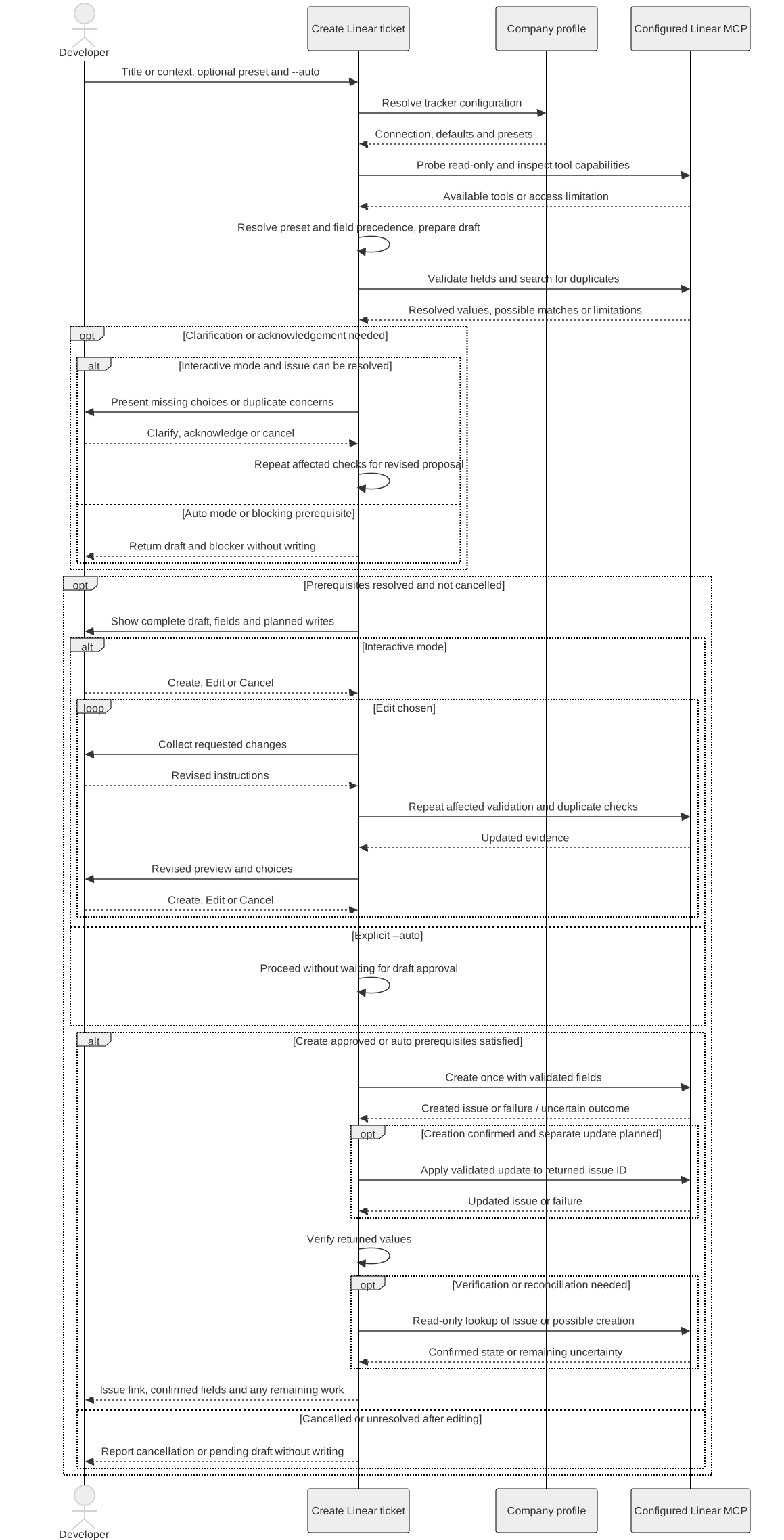
The command goes through five steps:
- Read my configuration. Find the Linear connection and my default team, assignee and status.
- Prepare the ticket. Resolve the project and milestone, draft the description, and check the requested fields against Linear.
- Check for duplicates. Search the team for similar issues and show any plausible matches.
- Let me review. Show the title, description and final fields, then wait for my choice.
- Create and verify. Create the approved ticket and return its link and confirmed fields.
At the review step I have three choices:
| Choice | What happens |
|---|---|
| Create | Create the ticket with the details shown. |
| Edit | Change the draft or fields, then review the revised version. |
| Cancel | Stop without creating a ticket. |
If it finds a possible duplicate, it asks whether a separate ticket is needed. It also tells me when the search could not be completed. An empty search result is useful information, but it is not a guarantee that nobody has reported the same thing before.
Workflow diagram

Open the overview at full size
Explore the detailed workflow
The sequence below comes from the skill guide and includes its supported branches. The default path pauses for Create, Edit or Cancel; the separate auto path requires an explicit opt-in.
Remembering my projects and milestones
Defaults cover the values I normally use. A preset groups choices for a particular kind of work, such as a project and its current milestone.
For example, if I configure a preset called reporting, I can select it explicitly:
/raholsn:create-linear-ticket Apply selected filters to the CSV export --reportingreporting is an example preset, not something built into the skill. Each developer configures the values that make sense for them.
The order is straightforward: an explicit instruction overrides the selected preset, and the preset overrides my defaults. I can use my usual project while assigning one particular ticket to someone else.
An assignee default of me means the user authenticated through the Linear connection. It does not switch between accounts.
When I want to skip the review step
The default is to show the draft and wait. There is also an explicit --auto flag for a request that already contains enough information:
/raholsn:create-linear-ticket Document the CSV export file format --reporting --autoThis still runs the field validation and duplicate checks. If it needs a decision, it stops and returns the draft with the reason. It should not guess a project or ignore a possible duplicate just to finish the request.
The same applies when a write times out. The ticket might already exist, so the skill checks what happened before reporting the result. It does not blindly create another one.
The skill
You can find the create-linear-ticket skill on GitHub.
The full instructions will live there so they can be read and adapted without copying the entire skill into this post. This article describes the workflow as of its updated date.
For me, this is a useful size for an AI workflow: one ticket, a few repeatable checks, and a clear point where I can review the result. I still need to decide whether the ticket describes the right work.
Happy coding!